

Roku has become synonymous with seamless streaming and user-friendly interfaces, but did you know that beneath the familiar menus lies a secret world of advanced settings and features? In this blog, we’ll take you on a journey through Roku’s secret menus, exploring the wireless, ads and screenshots, channel info, developers, platform, HDMI, and network menus, and providing you with the keys to access each one using your remote.
Secret Wireless Menu: Elevating Connectivity
- Access: Press the Home button five times, followed by Up, Down, Up, Down, Up.
- Fine-tune your Wi-Fi connection, adjusting channel bandwidth, signal strength, and even renaming your wireless network for optimal performance.
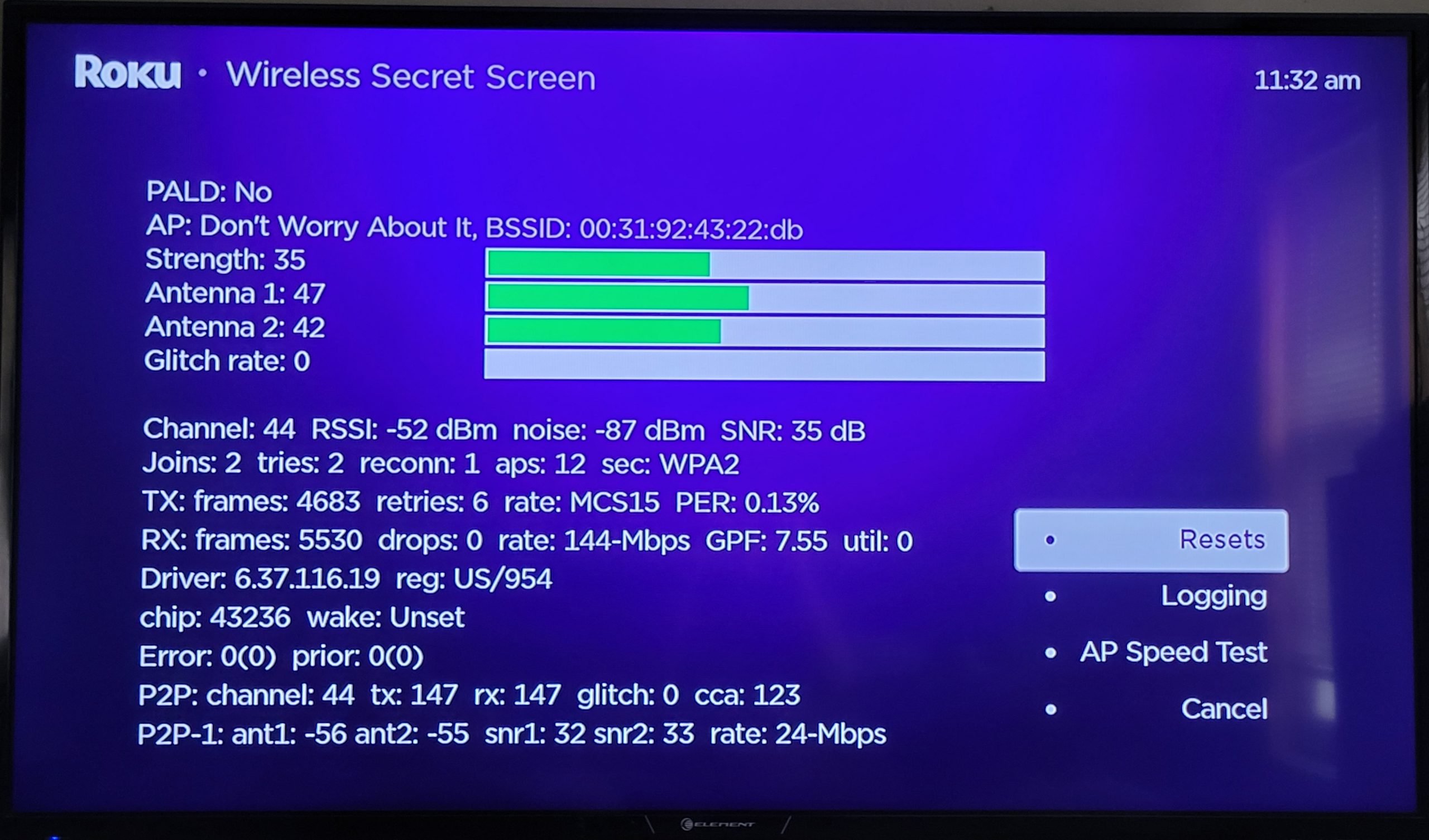
Secret Ads and Screenshots Menu: Mastering Control
- Access: Press the Home button five times, followed by Up, Right, Down, Left, Up.
- Take control of your Roku experience by customizing ad tracking preferences and capturing screenshots during your favorite shows or movies.
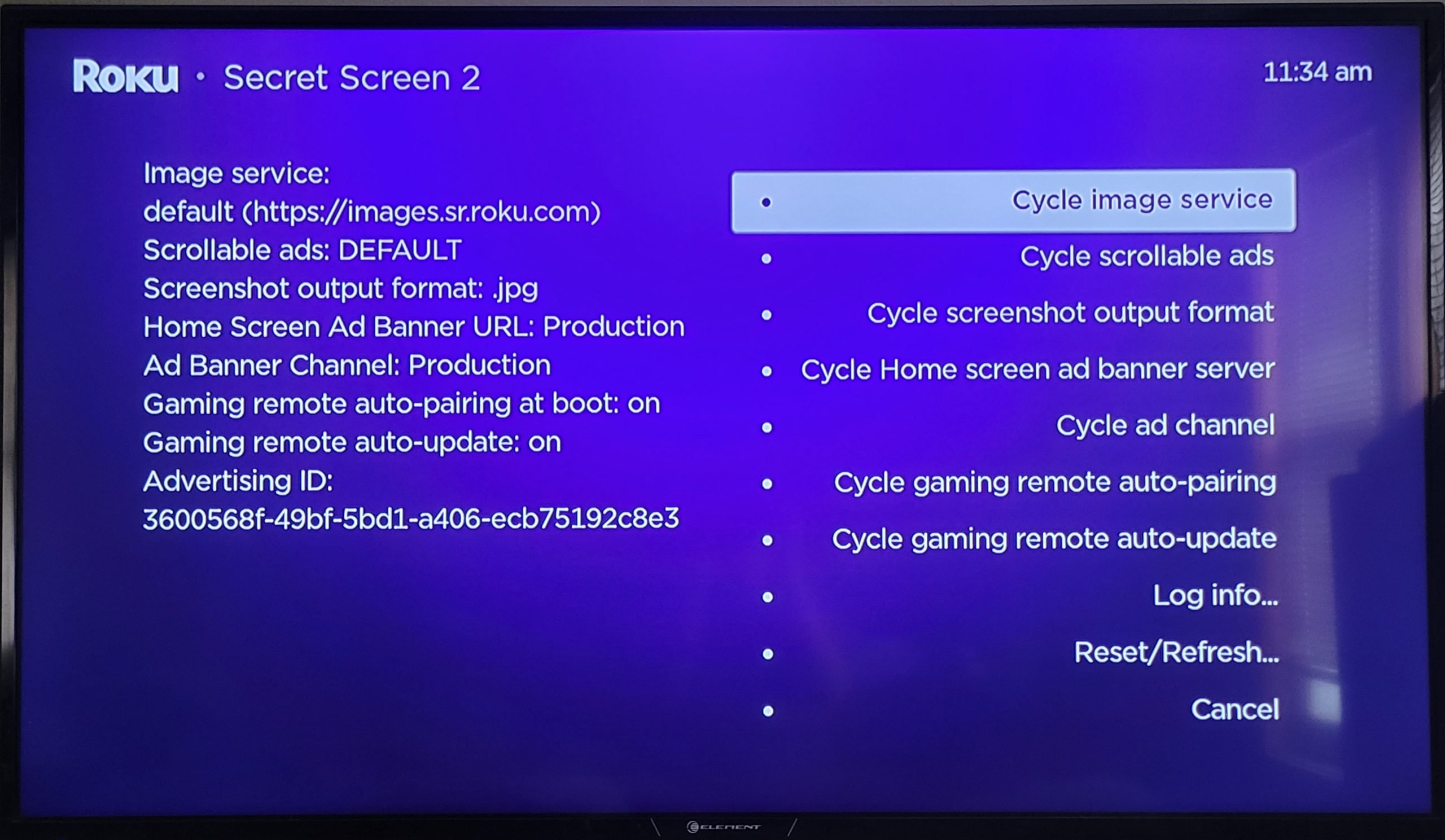
Secret Channel Info Menu: Unveiling Insights
- Access: Press the Home button three times, followed by Up, Up, Left, Right, Left, Right, Left.
- Dive into the secret channel info menu to uncover details about each installed channel, including version numbers and installation dates.
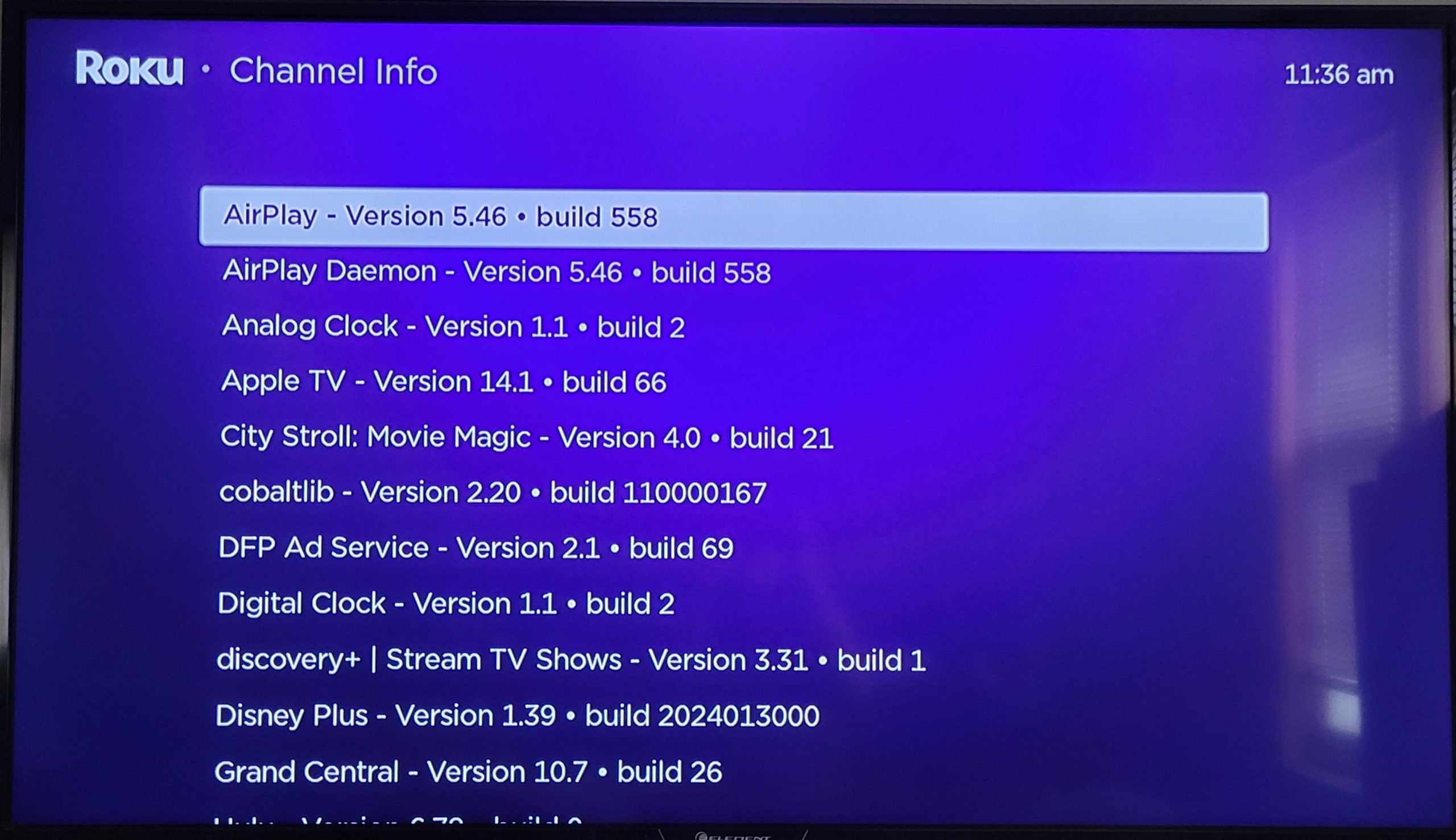
Secret Developers Menu: Playground for Enthusiasts
- Access: Press the Home button three times, followed by Up, Up, Right, Left, Right, Left, Right.
- Unlock advanced features, including bitrate adjustments, remote pairing, and additional settings to personalize your streaming experience.
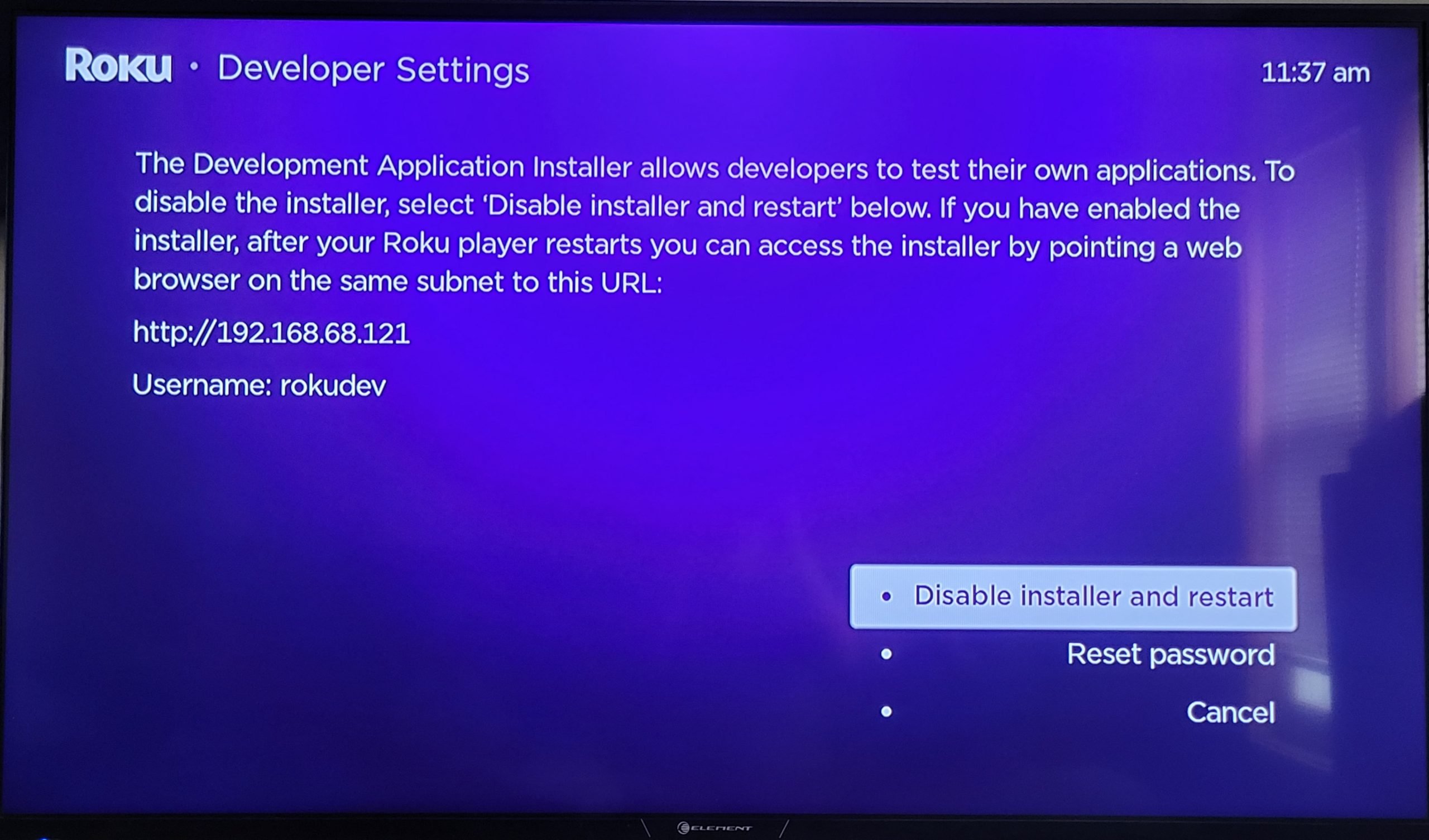
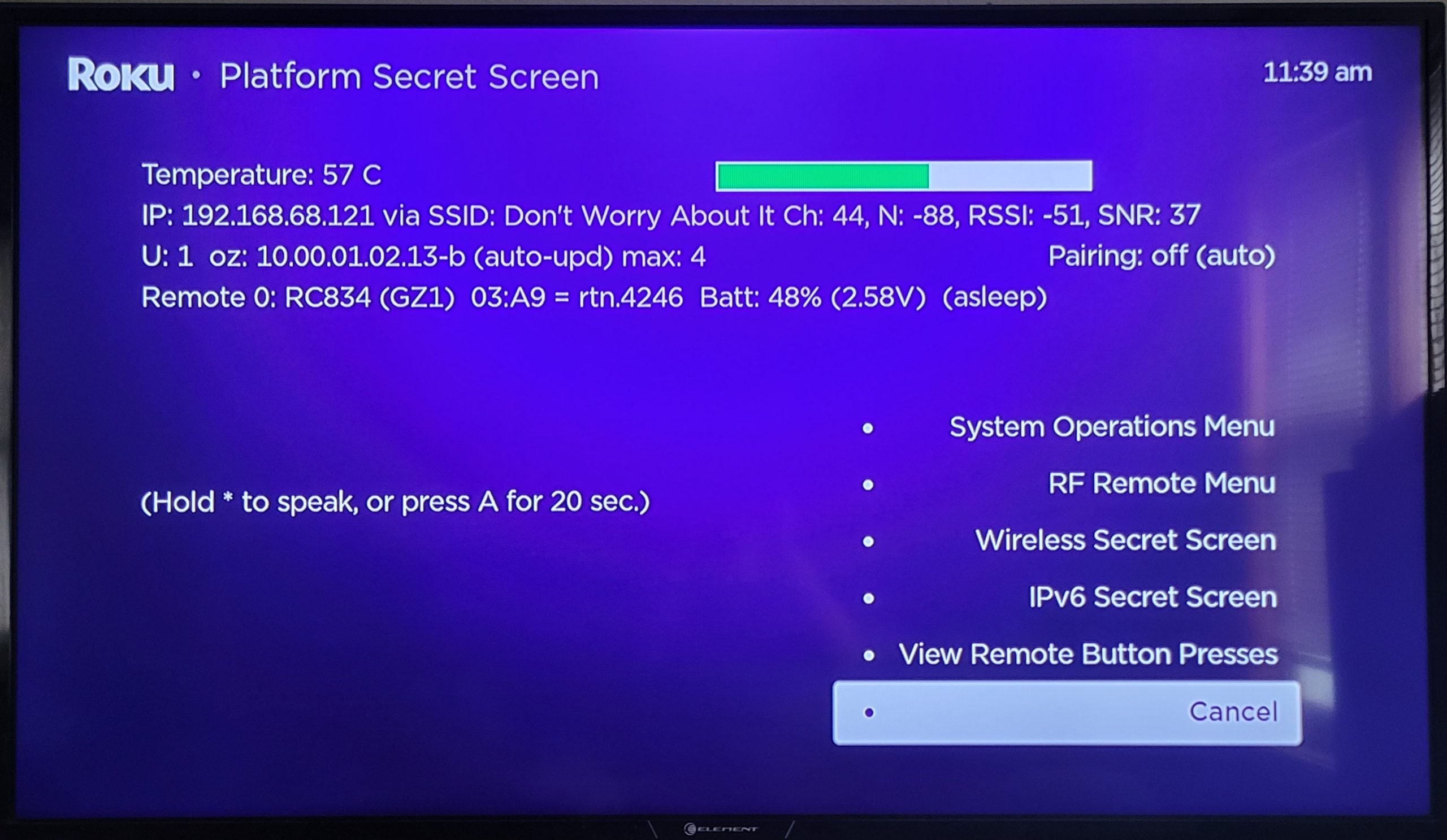
Secret Platform Menu: Behind the Scenes
- Access: Press the Home button five times, followed by Fast Forward, Play/Pause, Rewind, Play/Pause, Fast Forward.
- Peek behind the curtain with the secret platform menu, revealing system details, software versions, and build information.
Secret HDMI Menu: Optimize Your Display
- Access: Press the Home button five times, followed by Down, Left, Up, Up, Up.
- Fine-tune your display settings by adjusting screen resolution, color depth, and refresh rates for an enhanced viewing experience.

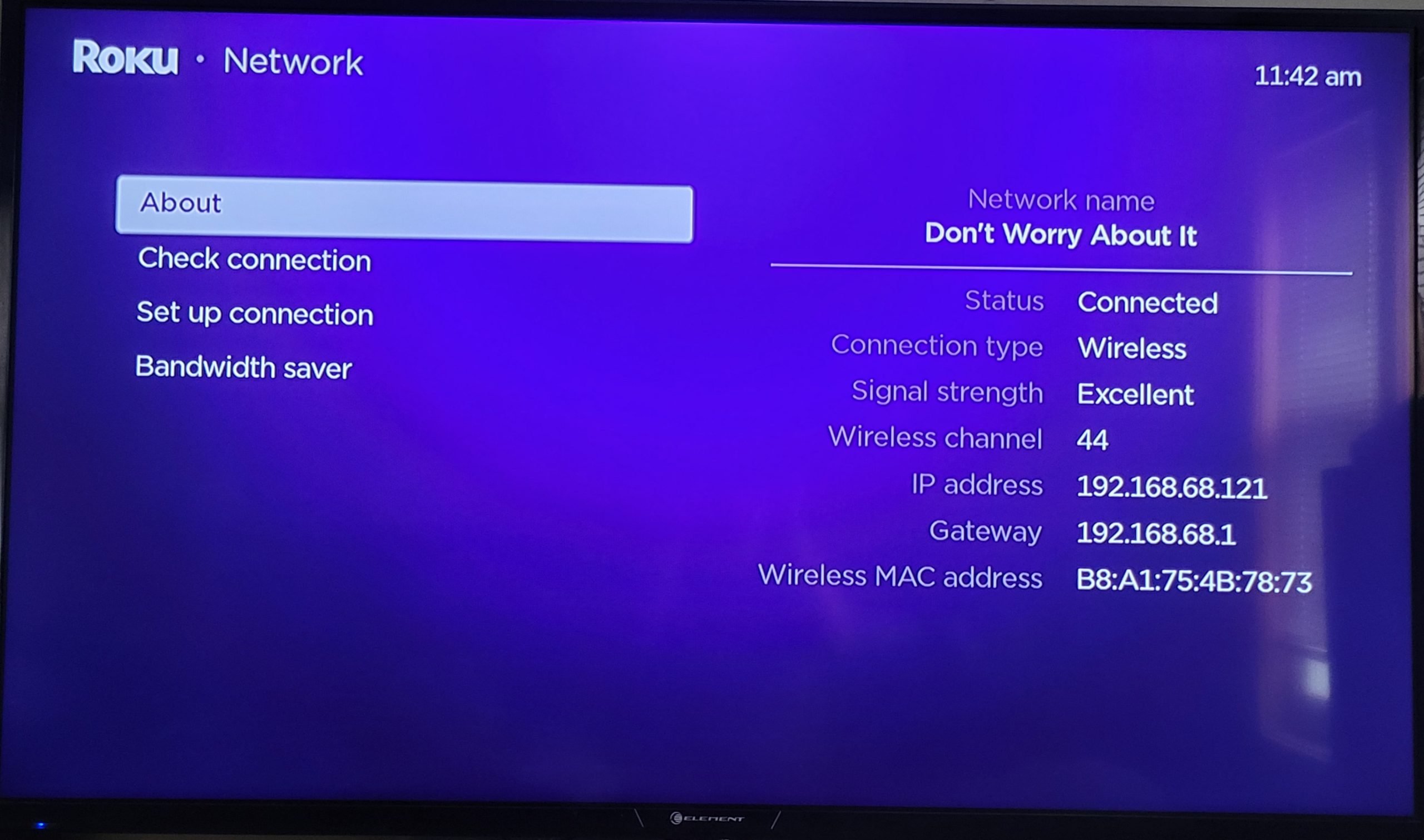
Secret Network Menu: Troubleshoot Like a Pro
- Access: Press the Home button five times, followed by Right, Left, Right, Left, Right
- Solve network issues with the secret network menu, allowing you to perform network resets and access detailed Wi-Fi connection information.
Lastly, while it’s not a secret menu, there is a secret reboot code. You can quickly reboot your Roku device without having to go through the menu system. Simply press the Home button five times, followed by Up, Rewind, Rewind, Fast Forward, Fast Forward.
Roku’s secret menus offer a playground for users eager to customize and optimize their streaming experience. Armed with the knowledge of how to access these hidden gems using your remote, you can now unlock the full potential of your Roku device. So, go ahead, explore the secret menus, and elevate your streaming game!
Hi,Could you help me retrieve the EPS to the asterisk button[Roku remote) and onto the tv settings(TCL ROKU).
I have asked several cust. service people and read all their articles to no avail and I think the ROKU folks should pay you big $ to handle their cust. services. Thank you ahead of time because I know you’ll get it right.
Turn on your TCL Roku TV using the power button on your Roku remote.
Press the Home button on your Roku remote to make sure you’re on the main menu.
Scroll down to Settings
Scroll down to TV Picture Settings or Picture
Scroll through the menu to find “Power” or “Energy Saver.” This is where you can adjust energy preferences.
After while watching a channel or using an app, you can press the asterisk (*) button on your Roku remote to quickly access picture settings for that specific channel or app.
-These steps worked for me on a different tv but I should have access to a TCL Roku next week and I can double check it is the same with those. Let us know if that works for you as well.
Thanks
When searching for a program, how do I make a space between words with my remote
In the search keyboard there is a U shaped button that looks like a open staple at the bottom. It is between the trashcan icon and the backspace button that looks like a tag with a x inside of it.
Is there a way to get a blutooth dongle to work on TCL ROKU 40″? Got a couple Bluetooth dongles so I could stream to Bluetooth speakers.
Plug Jack into headphone port on TCL and other end is usb which I also plug into TCL ROKU.
My speakers actually then pair with the dongle no sweat. But even though the audio menu says headphones plugged in, no audio is being streamed via that headphone port on the usb. I tried two seperate dongles.
Headphone out does work via ROKU app, I can even then shunt headphone audio from TCL to Bluetooth speakers using phone as intermediary.
Is the physical device disabled in some menu somewhere to prevent 3rd party Bluetooth workaround for non-Bluetooth TCL ROKU TVs?
Thanks!
Rick